



How to Complete and Manage Manufacturing Orders
The Manage Manufacturing Orders screen is the central location for managing Manufacturing Orders after they have been created.
Using this screen, users can:
- Search Manufacturing Orders
- Create new Manufacturing Orders
- Complete open Manufacturing Orders
- Uncomplete completed Manufacturing Orders
- Edit Manufacturing Orders
- Add additional components
- Remove components
- Delete components
- Print Manufacturing Picking Lists
- Export Manufacturing Order records
- Track manufacturing history
Before You Start
Before completing a Manufacturing Order, make sure:
- The physical manufacturing process has been completed.
- All required components have been consumed.
- The finished product is ready to be added into inventory.
- The Manufacturing Order already exists in the system.
Open the Manufacturing Order Screen
The Manage Manufacturing Orders screen will open automatically.
This is the same screen used to:
- Search Manufacturing Orders
- Create new Manufacturing Orders
- Complete Manufacturing Orders
- Uncomplete Manufacturing Orders
- Edit Manufacturing Orders
Manufacturing Order Status
Status | Quantity Required |
|---|---|
Open | The Manufacturing Order has been created but inventory has not yet been updated. |
Completed | The Manufacturing Order has been completed and inventory has already been updated. |
Search Manufacturing Orders
You can search Manufacturing Orders using:
- Manufacturing Date Range
- Manufacturing ID
- Finished Product Item
- Open Only filter
You can also:
- View both open and completed Manufacturing Orders in the same screen.
- Enable the Open Only option to display only Manufacturing Orders that have not yet been completed.
- Export Manufacturing Orders using the Export button.
Complete an Open Manufacturing Order
If the Manufacturing Order status is Open:
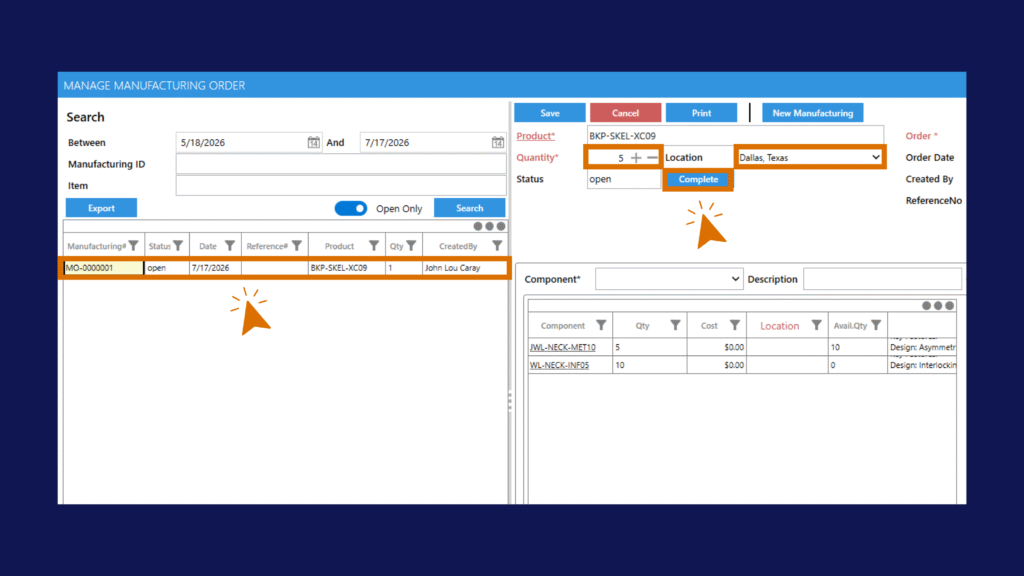
The Manufacturing Order status will change to Completed.
Once completed:
- Finished product inventory increases.
- Component inventory decreases.
- Inventory movement records are created automatically.
- The Manufacturing Order is considered finished.
Uncomplete a Manufacturing Order
If a completed Manufacturing Order needs to be modified:
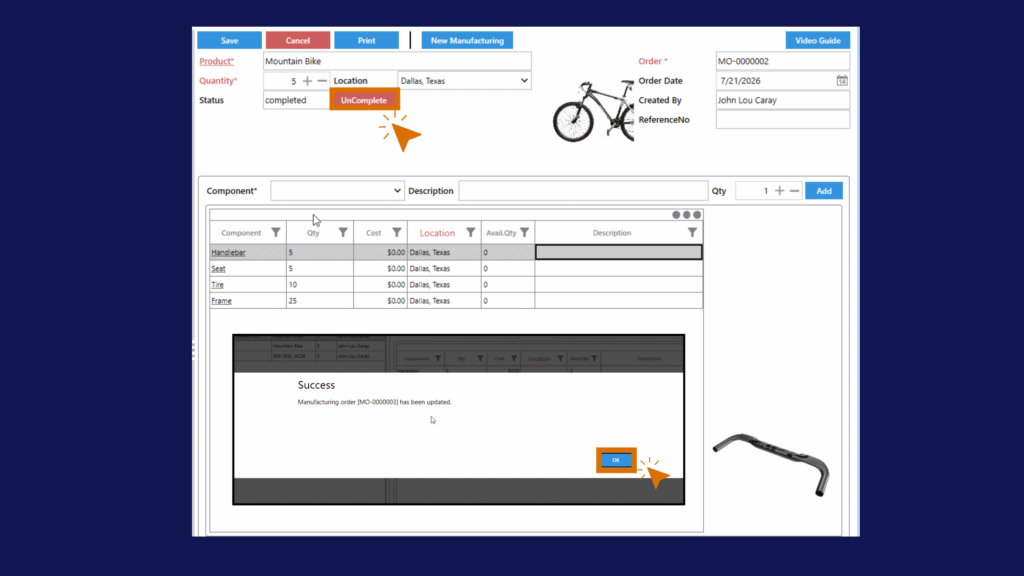
The system will automatically:
- Reverse the inventory transactions.
- Remove the finished product inventory from stock.
- Return component inventory back to stock.
- Change the Manufacturing Order status back to Open.
Once the Manufacturing Order becomes Open again, it can be edited normally.
Edit a Manufacturing Order
Manufacturing Orders can only be edited while the status is Open.
Users can:
- Change manufacturing quantity
- Change manufacturing location
- Add components
- Remove components
- Modify component quantities
- Update the ReferenceNo
- Update remarks
After making changes:
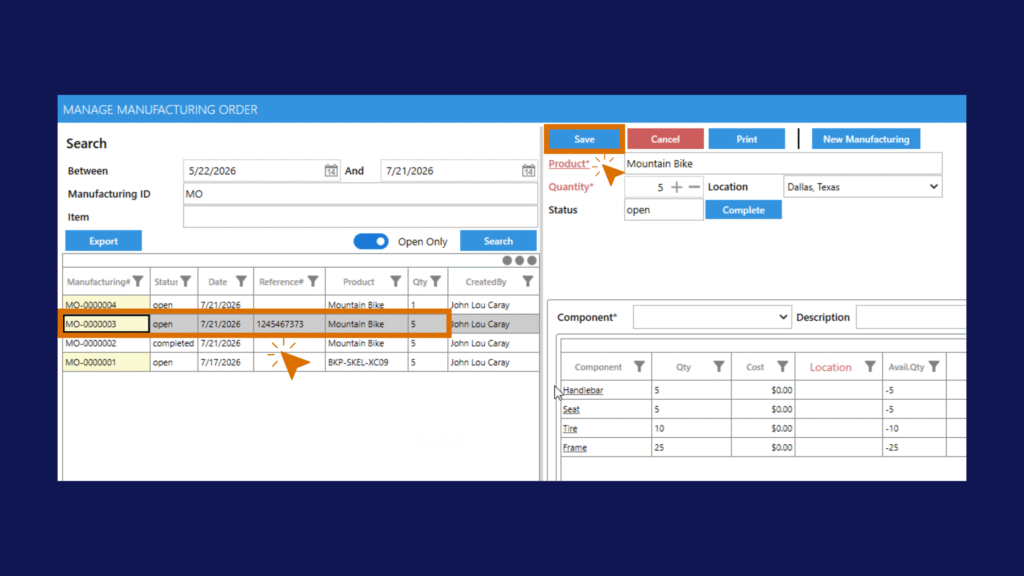
Add Additional Components
To add additional components:
Repeat for additional components if required.
Remove Components
Components can only be removed while the Manufacturing Order status is Open.
To remove a component:
Remove Components from a Completed Manufacturing Order
If the Manufacturing Order has already been completed:
This ensures inventory quantities remain accurate.
Print Manufacturing Picking Lists
Manufacturing Orders can be printed using the Print button.
The printed document is a Manufacturing Picking List designed for warehouse and production staff to collect the required components before manufacturing begins.
The picking list includes:
- Manufacturing Order number
- Manufacturing date
- Finished product information
- Manufacturing quantity
- Component item numbers
- Component quantities
- Component locations
- Component descriptions
This allows production staff to efficiently gather all required materials before starting the manufacturing process.
Typical use cases include:
- Manufacturing preparation
- Warehouse picking
- Assembly instructions
- Production floor operations
Export Manufacturing Orders
Manufacturing Orders can be exported using the Export button.
The export function exports all Manufacturing Orders currently displayed in the search results grid based on the selected filters.
The exported file includes information such as:
- Manufacturing Order number
- Status
- Manufacturing date
- Reference number
- Finished product
- Manufacturing quantity
- Created by user
The export respects the current search criteria, including:
- Manufacturing Date Range
- Manufacturing ID
- Finished Product Item
- Open Only filter
This allows users to export:
- Open Manufacturing Orders
- Completed Manufacturing Orders
- Manufacturing history for a specific period
- Production reports for analysis
- Audit records
- Historical manufacturing activity
Create a New Manufacturing Order from the Manage Screen
The Manage Manufacturing Orders screen also allows users to create new Manufacturing Orders.
To create a new Manufacturing Order:
For more information, see:
- How to Create a Manufacturing Order
- How to Enable Auto Complete Manufacturing Orders
Manufacturing Order Status
Action | Finished Product Inventory | Component Inventory |
|---|---|---|
Create Open Manufacturing Order | No change | No change |
Complete Manufacturing Order | Increase | Decrease |
UnComplete Manufacturing Order | Decrease | Increase |
Common Uses for Manage Manufacturing Orders
The Manage Manufacturing Orders screen is commonly used for:
- Furniture manufacturing
- HVAC fabrication
- Custom manufacturing
- Multi-stage production
- Long production cycles
- Production scheduling
- Work-in-progress manufacturing
Related Guides
- How to Create a Bill of Materials (BOM)
- How to Create a Manufacturing Order
- How to Enable Auto Complete Manufacturing Orders
- How to Create and Use Bundle Products in C2W Inventory
Tip
Think of a Bill of Materials (BOM) as the recipe and
Think of the Manufacturing Order status as inventory control:
- Open = Inventory has not been updated yet and the Manufacturing Order can still be modified.
- Completed = Inventory has already been updated.
- To modify a completed Manufacturing Order, click UnComplete first, make your changes, then complete the Manufacturing Order again.