



How to Create Manufacturing Orders from Sales Orders
The Create Manufacturing Order from Sales Order feature allows users to generate Manufacturing Orders directly from the Manage Sales Order screen.
Instead of manually switching between Sales Orders and Manufacturing Orders, users can create Manufacturing Orders directly from customer demand.
This workflow is ideal for:
- Build-to-order manufacturing
- Product assembly
- Bundle products
- Kit products
- Food production
- Beverage production
- Packaging operations
- Formula manufacturing
Before You Start
Before creating Manufacturing Orders from Sales Orders, make sure:
- The finished product already exists in C2W Inventory.
- A Bill of Materials (BOM) has already been created.
- The item is manufacturable.
- Component inventory is available.
Open the Manage Sales Order Screen
Search for the Sales Order
The system displays:
- Sales Order details
- Available inventory quantities
- Inventory shortages
- Manufacturable items
Manufacturing Indicators
The system provides visual indicators to help users identify manufacturing requirements.
Indicator | Meaning |
|---|---|
Purple Item | The item manufacturable and has a Bill of Materials (BOM). |
Yellow Item | Available inventory quantity is 0 or below and additional manufacturing may be required before the item can be picked or shipped. |
Create MO | Creates a Manufacturing Order for the selected manufacturable item. |
Create MO for All | Creates Manufacturing Orders for all manufacturable shortages in the Sales Order. |
Create Manufacturing Orders Individually
Users can create Manufacturing Orders one item at a time.
The Manufacturing Order screen opens automatically.
The system automatically populates:
- Finished product
- Manufacturing quantity
- BOM components
- Component quantities
- Sales Order number as the ReferenceNo
This workflow gives users full control over:
- Which products are manufactured
- When manufacturing starts
- The quantity to manufacture
- The order in which products are produced
Create Manufacturing Orders for All Shortages
If multiple manufacturable items require production, users can click Create MO for All.
This creates Manufacturing Orders for all manufacturable shortages shown in the Sales Order.
Users are not required to use Create MO for All and can continue creating Manufacturing Orders individually using the Create MO button if preferred.
Complete Manufacturing Orders
If Manufacturing Orders are created using Save, they remain in Open status.
To complete them:
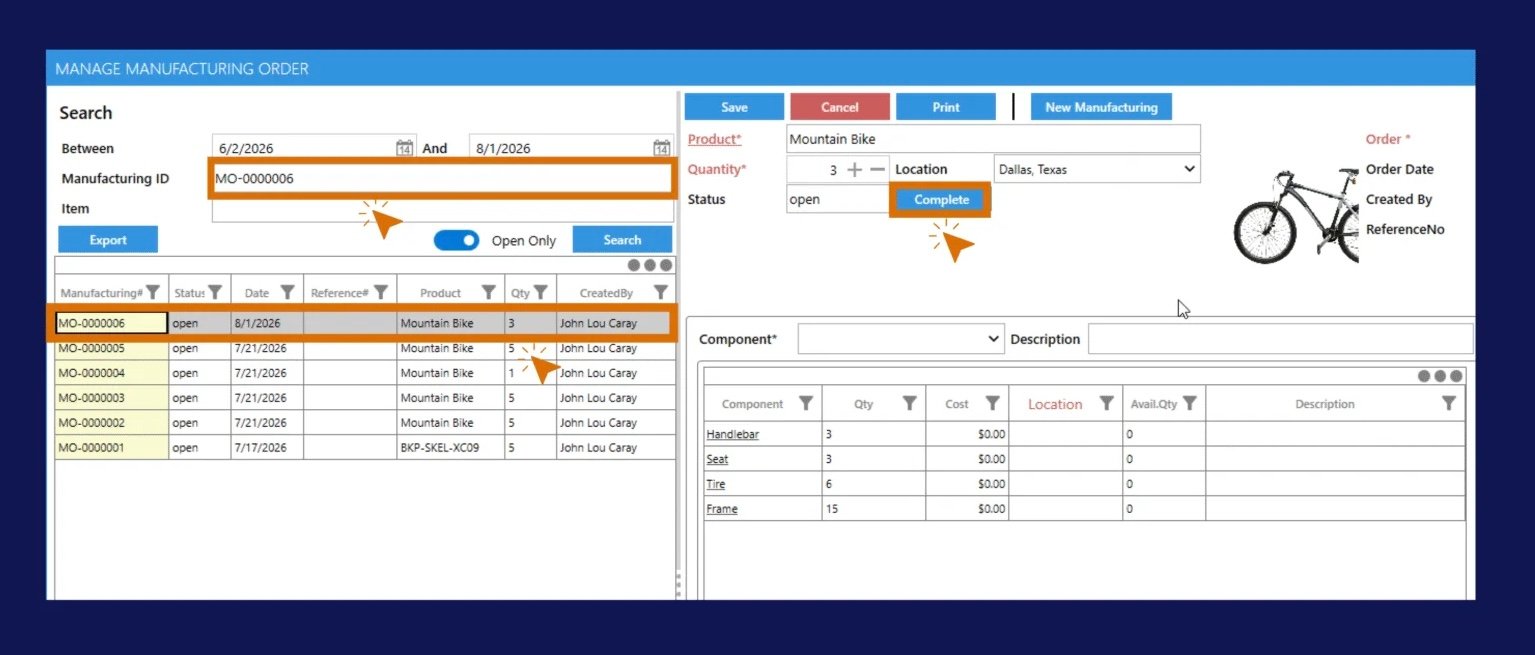
Once completed:
- Finished product inventory increases.
- Component inventory decreases.
- Inventory movement records are created automatically
Complete Multiple Manufacturing Orders for One Sales Order
The Sales Order number is automatically stored in the Manufacturing Order ReferenceNo field.
Users can search by Sales Order number and:
- complete Manufacturing Orders individually
- or click Complete All Open MOs
The Complete All Open MOs button automatically completes all open Manufacturing Orders displayed in the search results.
This is especially useful when multiple products for the same customer order finish production at the same time.
Print Manufacturing Picking Lists
The Print button generates a Manufacturing Picking List containing:
- Finished Product
- Component Items
- Quantities
- Inventory Locations
- Descriptions
This document can be used by warehouse and production teams to gather all required components before manufacturing begins.
Export Manufacturing Orders
The Export button exports all Manufacturing Orders currently displayed in the search results grid based on the selected filters.
Industry Examples and Use Cases
The following examples show how businesses use Manufacturing Orders from Sales Orders in real-world environments.
Beverage Manufacturing
Components
- Beverage concentrate
- Purified water
- Bottle
- Bottle cap
- Product label
Finished Product
- 500ml bottled beverage
Cooking Oil Manufacturing
Components
- Bulk cooking oil
- Glass bottle
- Bottle cap
- Product label
Finished Product
- 750ml cooking oil bottle
Honey Production
Components
- Bulk honey
- Plastic bottle
- Cap
- Product label
Finished Product
- 500g honey bottle
Supplement Manufacturing
Components
- Powder blend
- Container
- Scoop
- Label
Finished Product
- 1kg supplement container
Cosmetic Manufacturing
Components
- Lotion base
- Pump bottle
- Pump head
- Label
Finished Product
- 250ml lotion bottle
These workflows are commonly referred to as:
- Make-to-order manufacturing
- Batch manufacturing
- Recipe manufacturing
- Formula manufacturing
- Process manufacturing
Related Guides
Tip
Think of the Sales Order as customer demand and the Manufacturing Order as production execution. Using the Sales Order number as the Manufacturing Order reference creates a direct connection between customer orders and manufacturing activity.