



How to Print Item Barcode Labels from a Sales Order
C2W Inventory lets you load items from a Sales Order directly into the Item Label screen and batch print their barcode labels.
Note
C2W Inventory supports both 1D barcodes and QR codes for item labels.
Print Labels Directly from a Sales Order
01
From the Main Menu, navigate to Sales > Manage Sales Order.
02
Find and select the Sales Order you want to print labels for.
03
Click Nav. To Item Label.
04
The Item Label screen will open with the Sales Order items loaded.
05
Review the items and label quantities.
06
Click Batch Print to print labels for multiple items at once.
Tip
Review your label settings before batch printing. See How to Configure and Print Item Barcode Labels for more information about customizing barcode labels.
Search for a Sales Order from the Item Label Screen
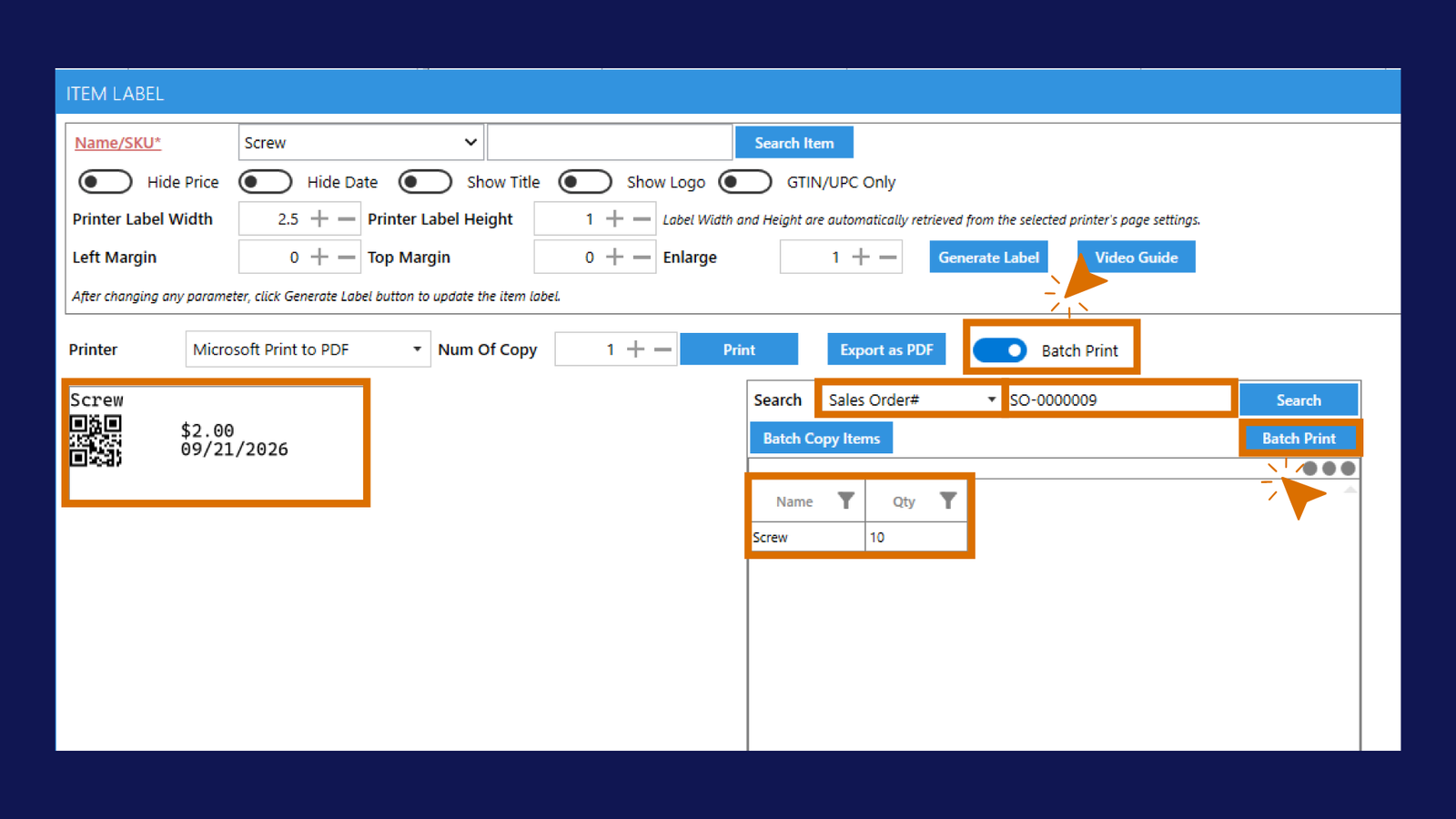
If you are already on the Item Label screen, you can also search for a specific Sales Order and load its items for batch printing.
01
Turn on Batch Print.
02
In the Search dropdown, select Sales Order#.
03
Enter the Sales Order number.
04
Click Search.
05
The items and quantities from the Sales Order will appear in the batch print list.
06
Review the items and quantities, then click Batch Print.
Tip
If an item should not be included in the batch print, select it from the list and click Delete Selected Item.