



How to Print Barcode Labels for Batch Imported Items
After batch importing items with initial inventory quantities, you can send the imported items directly to the Item Label screen and batch print their barcode labels without searching for each item individually.
Note
C2W Inventory supports both 1D barcodes and QR codes for item labels.
Import Items with Initial Inventory
01
From the Main Menu, navigate to Settings > Import Data.
02
Select Item with Initial Inventory from the import options.
03
Download the import template and enter the item and initial inventory information.
04
Click Browse to upload the completed file.
05
Complete the import.
Tip
For detailed instructions on preparing and importing your file, see How to Batch Import Items with Initial Inventory.
Open Imported Items in Item Label
After the import is completed:
01
Open the Import Result tab.
02
Review the imported items.
03
Click Nav. To Item Label.
04
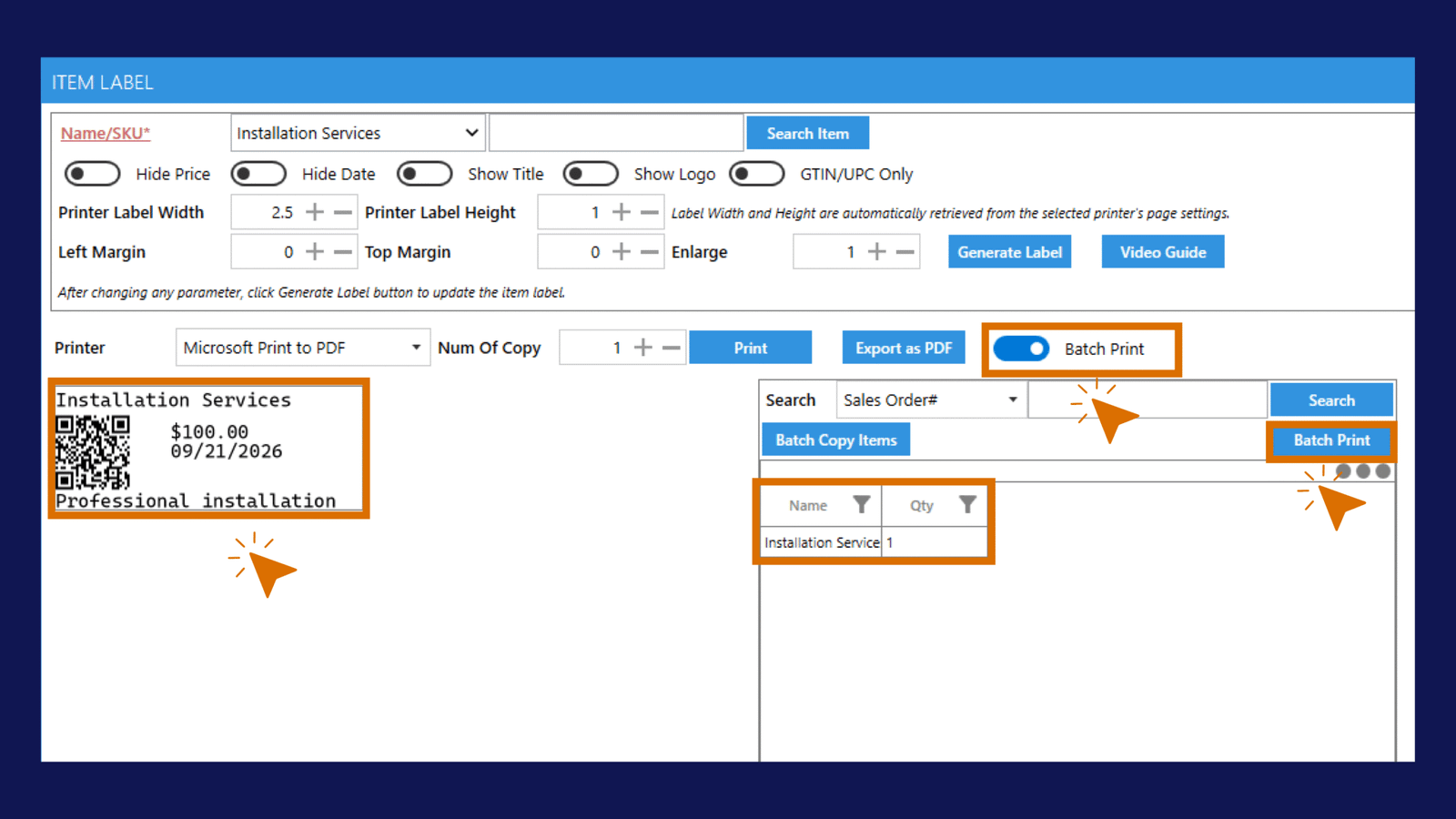
The Item Label screen will open with the imported items and quantities loaded.
This allows you to print labels for the newly imported inventory without searching for each item individually.
Batch Print the Labels
Once the imported items are loaded on the Item Label screen:
01
Review the items and label quantities.
02
Review your label settings and select the correct Printer.
03
Click Batch Print to print the barcode labels for multiple items at once.
Tip
To customize the barcode format, label content, size, or other label settings before printing, see How to Configure and Print Item Barcode Labels.