



How to Manage and Update Manufacturing Orders in C2W Inventory
Overview of the Manage Screen
The Manage Manufacturing Orders screen serves as the central hub for overseeing all active and completed production runs after they have been created.
To access this screen:
From this dashboard, you can search records, create new orders, edit open items, print picking lists, and export data.
Searching and Filtering Manufacturing Orders
You can quickly locate specific production runs using the search and filter tools:
- Manufacturing Date Range
- Manufacturing ID
- Finished Product Item
- Open Only filter: Enable this option to hide finished runs and display only Manufacturing Orders that remain open and incomplete.
Editing an Open Manufacturing Order
Note |
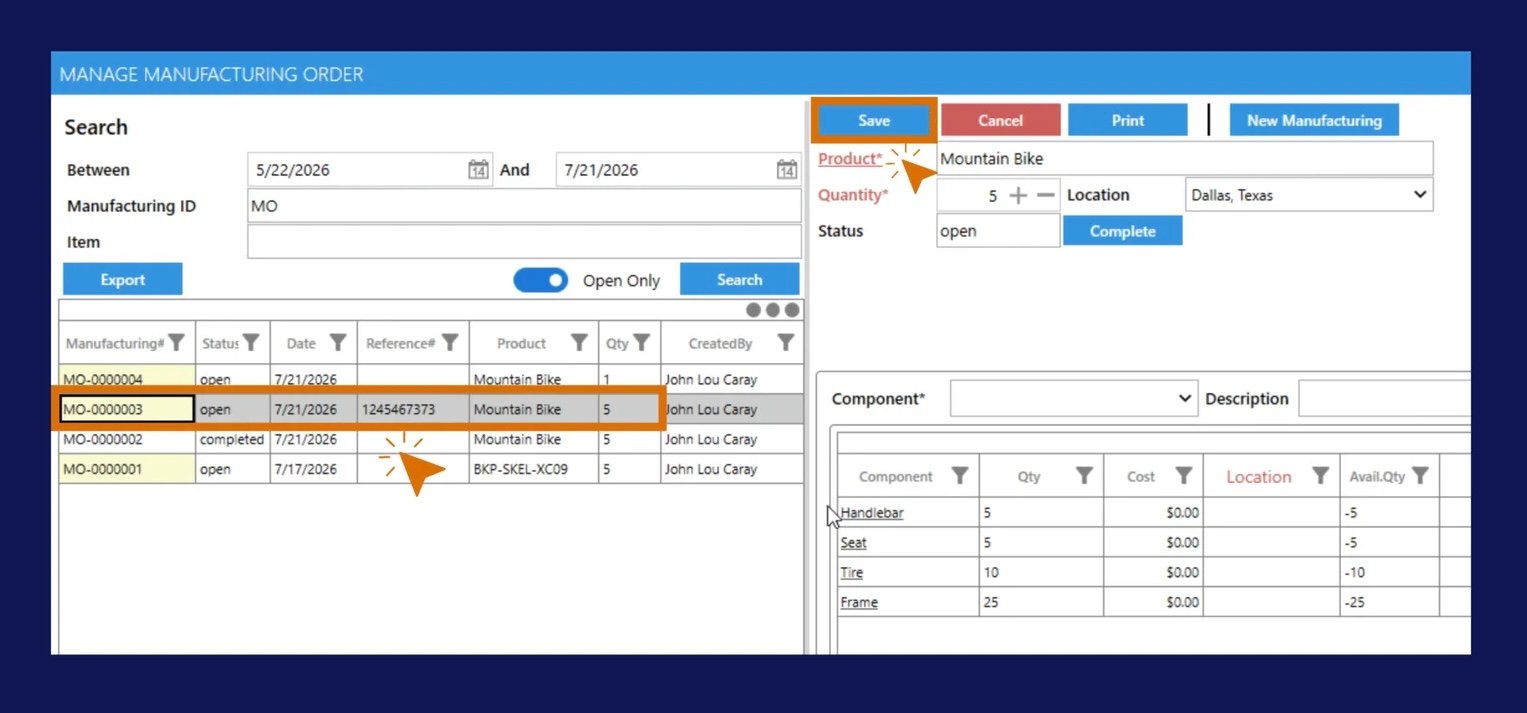
While a Manufacturing Order is Open, you can update:
- Manufacturing quantity
- Manufacturing location
- Reference number (ReferenceNo)
- Remarks
After making updates, click Save. Once physical production is finished, click Complete to update inventory quantities.
Add and Removing Components
Add Additional Components
To add additional components:
Repeat for additional components if required.
Remove Components
Components can only be removed while the Manufacturing Order status is Open.
To remove a component:
Modifying a Completed Order: If components need to be deleted from an order that was already completed, open the record, click UnComplete, delete the item, click Save, and then click Complete again to keep inventory records accurate.
Edit a Manufacturing Order
Manufacturing Orders can only be edited while the status is Open.
Users can:
- Change manufacturing quantity
- Change manufacturing location
- Add components
- Remove components
- Modify component quantities
- Update the ReferenceNo
- Update remarks
After making changes:
Remove Components
Components can only be removed while the Manufacturing Order status is Open.
To remove a component:
Printing Manufacturing Picking Lists
You can generate printable documentation directly from the system by clicking the Print button.
The Manufacturing Picking List helps warehouse and production staff gather all required raw materials before assembly begins. It includes:
- Manufacturing Order number and date
- Finished product information and target quantity
- Component item numbers, descriptions, quantities, and warehouse locations
Exporting Manufacturing Orders
To export your production data, click the Export button. The export function captures all records currently visible in your search results grid based on your active filters (such as date range, status, or specific finished items).
The exported file includes:
- Manufacturing Order number and status
- Manufacturing date and reference number
- Finished product and target quantity
- User who created the record
This feature is ideal for generating production reports, conducting audits, and reviewing historical manufacturing activity.