



How to Complete Manufacturing Orders in C2W Inventory
Manufacturing Order Status Explained
TIP
Think of the Manufacturing Order status as inventory control:
• Open = Inventory has not been updated yet and the Manufacturing Order can still be modified.
• Completed = Inventory has already been updated.
TIP
Think of the Manufacturing Order status as inventory control:
• Open = Inventory has not been updated yet and the Manufacturing Order can still be modified.
• Completed = Inventory has already been updated.
Status | Quantity Required |
|---|---|
Open | The Manufacturing Order has been created but inventory has not yet been updated. |
Completed | The Manufacturing Order has been completed and inventory has already been updated. |
Status | Quantity Required |
|---|---|
Open | The Manufacturing Order has been created but inventory has not yet been updated. |
Completed | The Manufacturing Order has been completed and inventory has already been updated. |
Status | Quantity Required |
|---|---|
Open | The Manufacturing Order has been created but inventory has not yet been updated. |
Completed | The Manufacturing Order has been completed and inventory has already been updated. |
How to Complete an Open Manufacturing Order
Once the physical manufacturing process is finished, all required components have been consumed, and the finished product is ready to be added into inventory, complete the order using these steps:
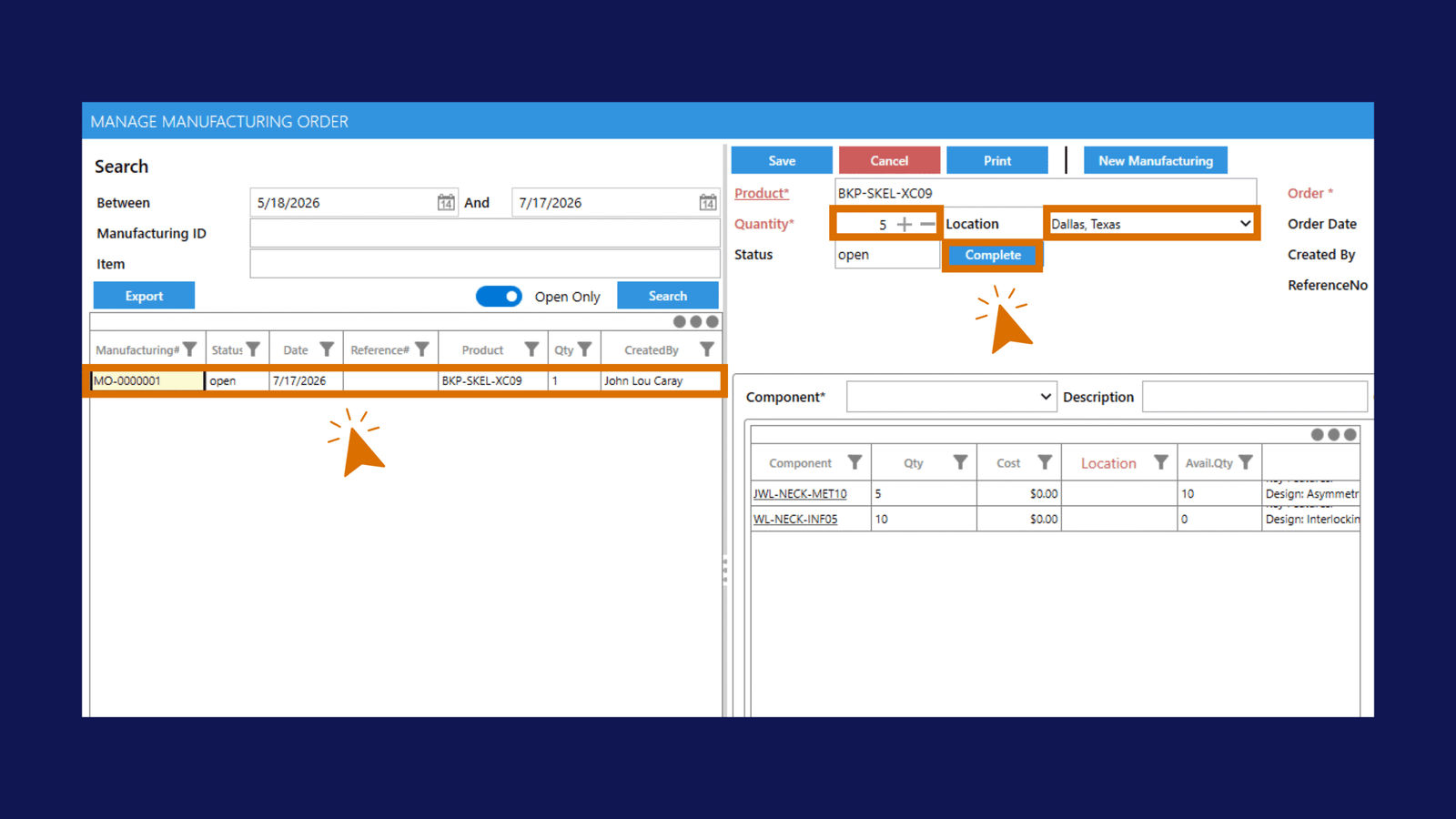
The Manufacturing Order status will change to Completed.
Once completed:
- Finished product inventory increases.
- Component inventory decreases.
- Inventory movement records are created automatically.
- The Manufacturing Order is considered finished.
How to Uncomplete a Manufacturing Order
If a completed Manufacturing Order needs to be modified:
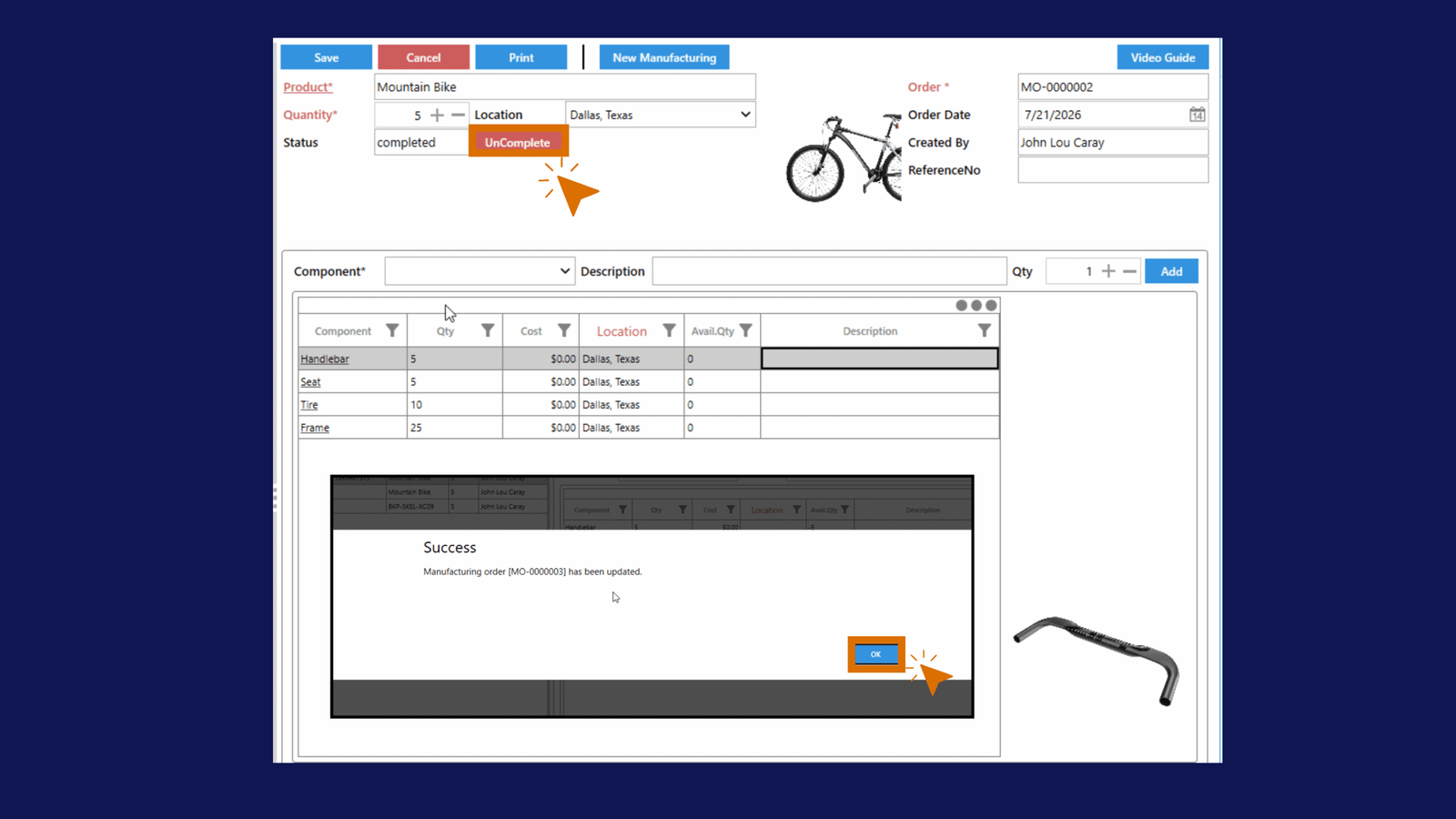
The system will automatically:
- Reverse the inventory transactions.
- Remove the finished product inventory from stock.
- Return component inventory back to stock.
- Change the Manufacturing Order status back to Open.
Once the Manufacturing Order becomes Open again, adjustments or edits can be made normally. To finalize changes, click Complete again once the physical manufacturing process is finished.
What Happens to Inventory?
Action | Finished Product Inventory | Component Inventory |
|---|---|---|
Create Open Manufacturing Order | No Change | No Change |
Complete Manufacturing Order | Increase | Decrease |
UnComplete Manufacturing Order | Decrease | Increase |
Action | Finished Product Inventory | Component Inventory |
|---|---|---|
Create Open Manufacturing Order | No Change | No Change |
Complete Manufacturing Order | Increase | Decrease |
UnComplete Manufacturing Order | Decrease | Increase |
Action | Finished Product Inventory | Component Inventory |
|---|---|---|
Create Open Manufacturing Order | No Change | No Change |
Complete Manufacturing Order | Increase | Decrease |
UnComplete Manufacturing Order | Decrease | Increase |