



How to Perform a Stock Count by Location in C2W Inventory
The Whole Location option allows you to count all inventory in a specific location at once. You can import your counted quantities, compare them with the quantities recorded in C2W Inventory, and adjust any discrepancies.
Create a New Stock Adjustment
Note
If you only need to adjust a single item, keep the Adjustment Type set to Not Whole Location.
Select a Location to Count
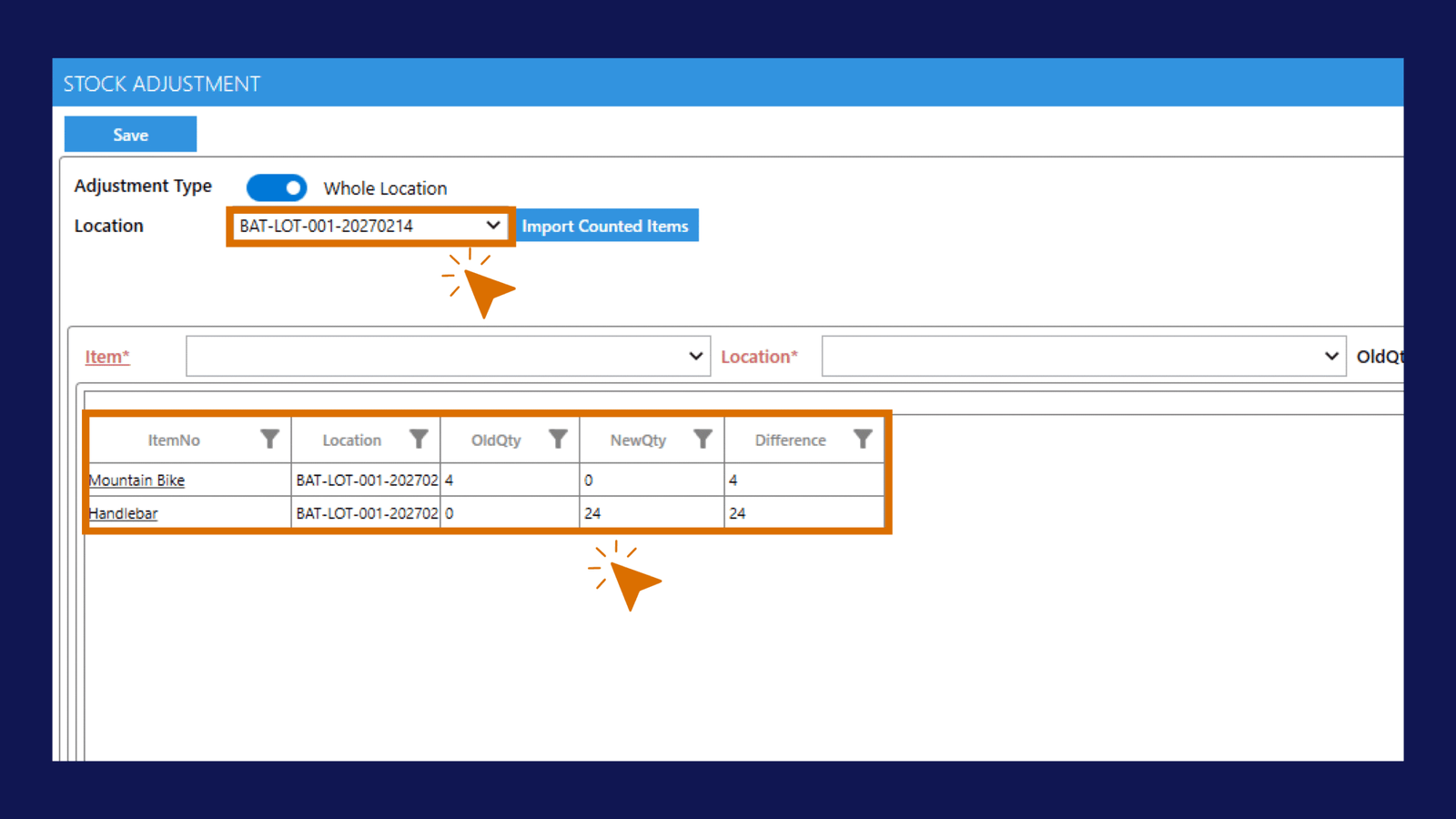
Select the Location you want to count. C2W Inventory will display all items and their current quantities in that location. Physically count the inventory in the selected location and record the counted quantities.
Tip
You can prepare your physical count in Excel with ItemNo and Quantity columns before importing it into C2W Inventory.
Import Counted Items
C2W Inventory will automatically compare the counted quantities with the quantities currently recorded in the selected location and identify any discrepancies.
Review and Adjust Discrepancies
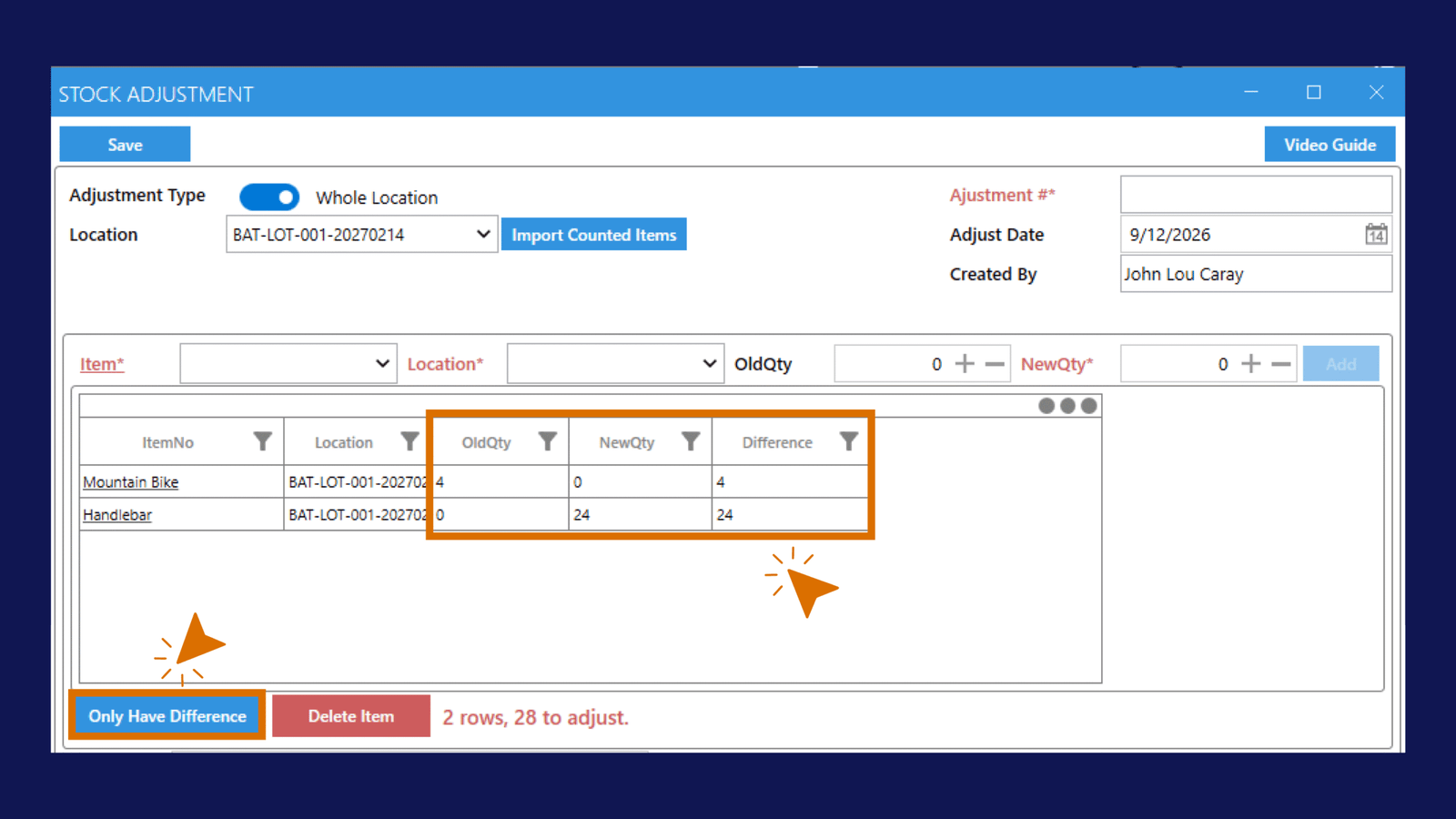
Once saved, the inventory quantities for the selected location will be updated based on the stock count.