



How to Configure and Print Item Barcode Labels in C2W Inventory
The Item Label screen lets you create and print barcode labels for your inventory items. You can customize the information displayed on the label, adjust its size and position, print multiple copies, or export the label as a PDF.
Note
C2W Inventory supports both 1D barcodes and QR codes for item labels.
Open the Item Label Screen
There are two ways to open the Item Label screen.
1. Open Item Label Directly
Once selected, the item information will load on the Item Label screen.
2. Open Item from Manage Item
Configure Your Label
Once the item is selected, customize the label using the available options:
- Hide Price – Removes the item price from the label.
- Hide Date – Removes the date from the label.
- Show Title – Displays the item title on the label.
- Show Logo – Displays your company logo on the label.
- GTIN/UPC Only – Generates the label using the item’s GTIN/UPC instead of the standard item barcode.
You can also adjust:
- Printer Label Width / Height – The label dimensions are automatically retrieved from the selected printer’s page settings.
- Left Margin / Top Margin – Adjusts the position of the label content.
- Enlarge – Increases the size of the label content.
Tip
Make sure the label dimensions configured for your printer match the physical labels you are using. See How to Set Up a Label Printer for printer setup instructions.
Generate and Preview the Label
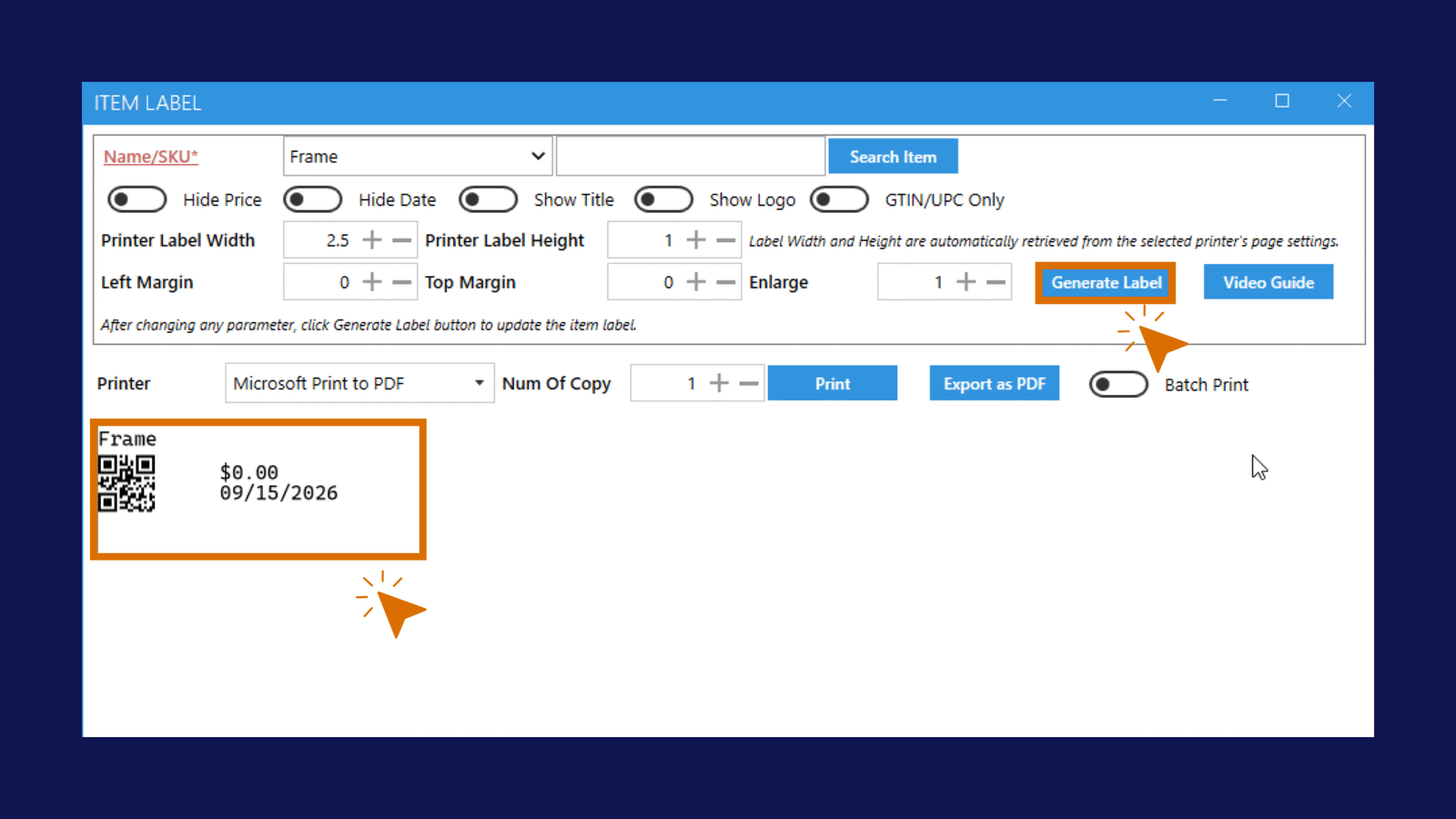
Important
After changing any label setting, click Generate Label to update the preview before printing.
Print the Item Label
Once the label looks correct:
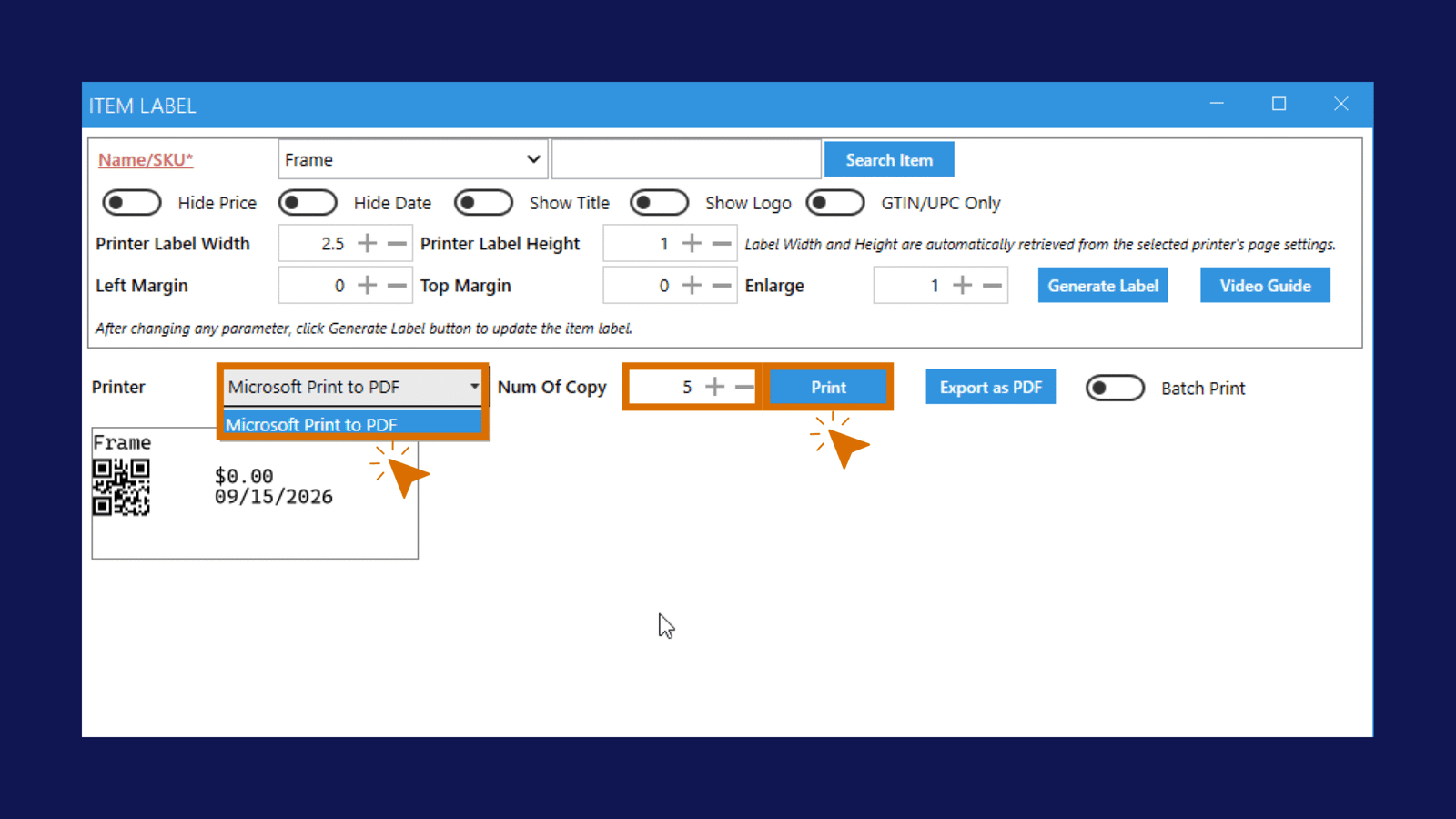
The label will be sent to the selected printer.
Export the Label as a PDF
You can also save the generated label as a PDF:
The label will be sent to the selected printer.