



How to Manage Brands in C2W Inventory
Brands can be used to organize products by manufacturer, product line, or brand name. Once a brand is created, it can be assigned to items in C2W Inventory to help keep your product information organized.
Open Manage Brands
Go to Settings → Manage Brands. The Manage Brands screen displays your existing brands and provides options to add, import, export, or delete brands.
Add a Brand
To create a new brand:
The brand is immediately saved and added to the list. Once created, the brand can be selected when creating or editing an item.
View and Search Brands
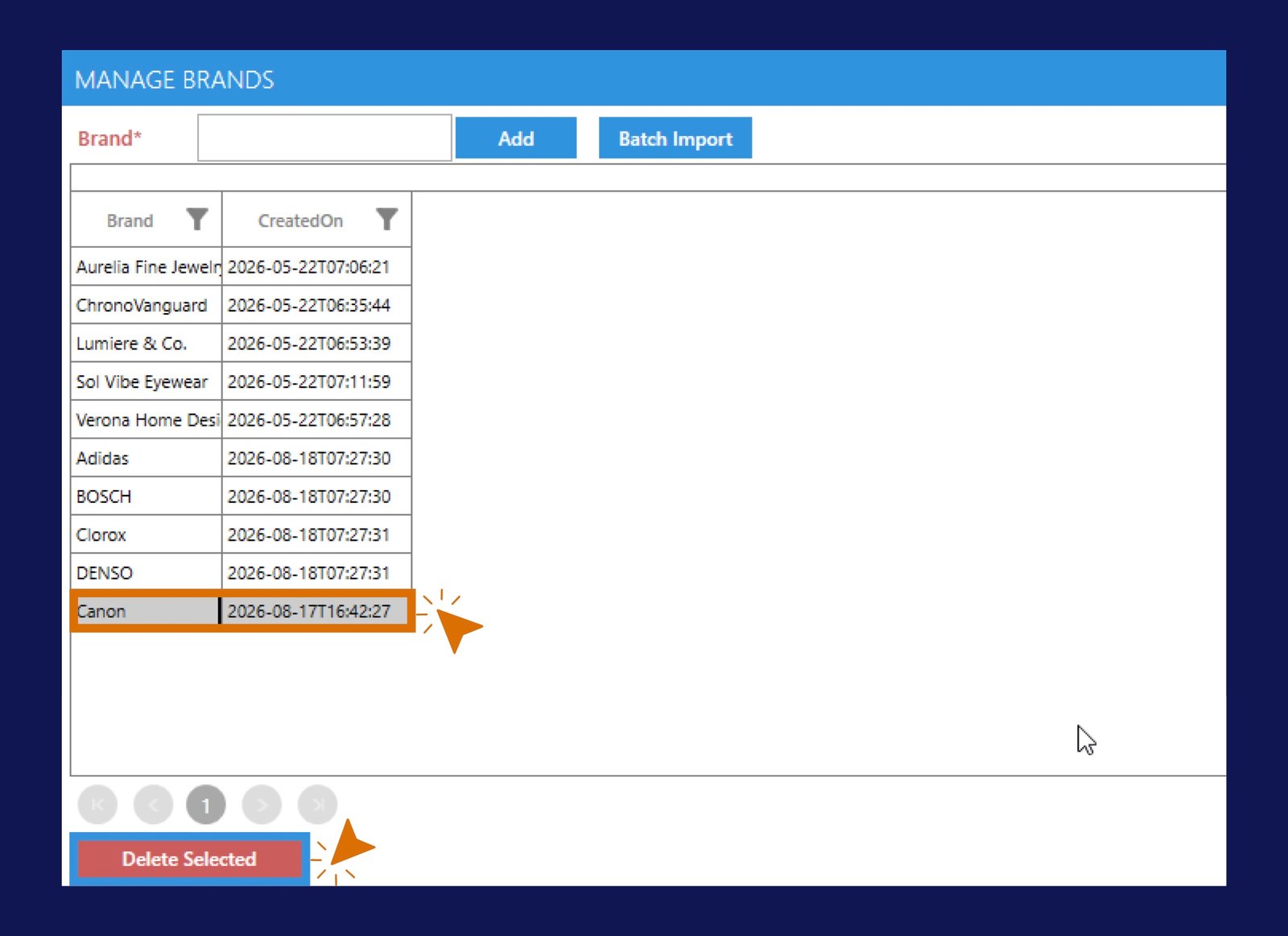
Existing brands are displayed in the Manage Brands list. The screen shows:
- Brand – The name of the brand.
- CreatedOn – The date and time the brand was created.
Use the filter icon in the column headers to quickly find or filter brands in the list. The total number of brands is displayed at the bottom of the screen.
Export Brands
Click Export to export the existing brand list. This can be useful when you need to review your brand data outside of C2W Inventory or keep a copy of your current brand list.
Delete a Brand
To remove brand:
Important
Before deleting a brand, make sure it is no longer needed or assigned to products.
Batch Import Brands
If you need to add many brands at once, use the Batch Import feature instead of creating them individually.
Batch Import allows you to copy a list of brands from Excel or Notepad and import them into C2W Inventory.
For complete instructions, see How to Batch Import Brands.