



How to Use Lot Tracking, Batch Numbers, and Expiration Dates in C2W Inventory
The Lot Tracking feature allows businesses to track inventory using Lot Numbers, Batch Numbers, and Expiration Dates.
This feature provides complete inventory traceability while keeping warehouse operations simple through the use of automatic virtual locations.
Unlike traditional inventory systems that require users to manually create separate locations for every lot and expiration date, C2W Inventory automatically manages this process in the background.
Lot Tracking is commonly used for businesses that require inventory traceability, expiration management, and regulatory compliance.
Before You Start
Before using Lot Tracking, make sure:
- The item already exists in C2W Inventory.
- The item is configured as an Inventory Item.
- Physical warehouse locations have already been created.
- The item will be tracked using Lot Numbers rather than Serial Numbers.
Enable Lot Tracking for an Item
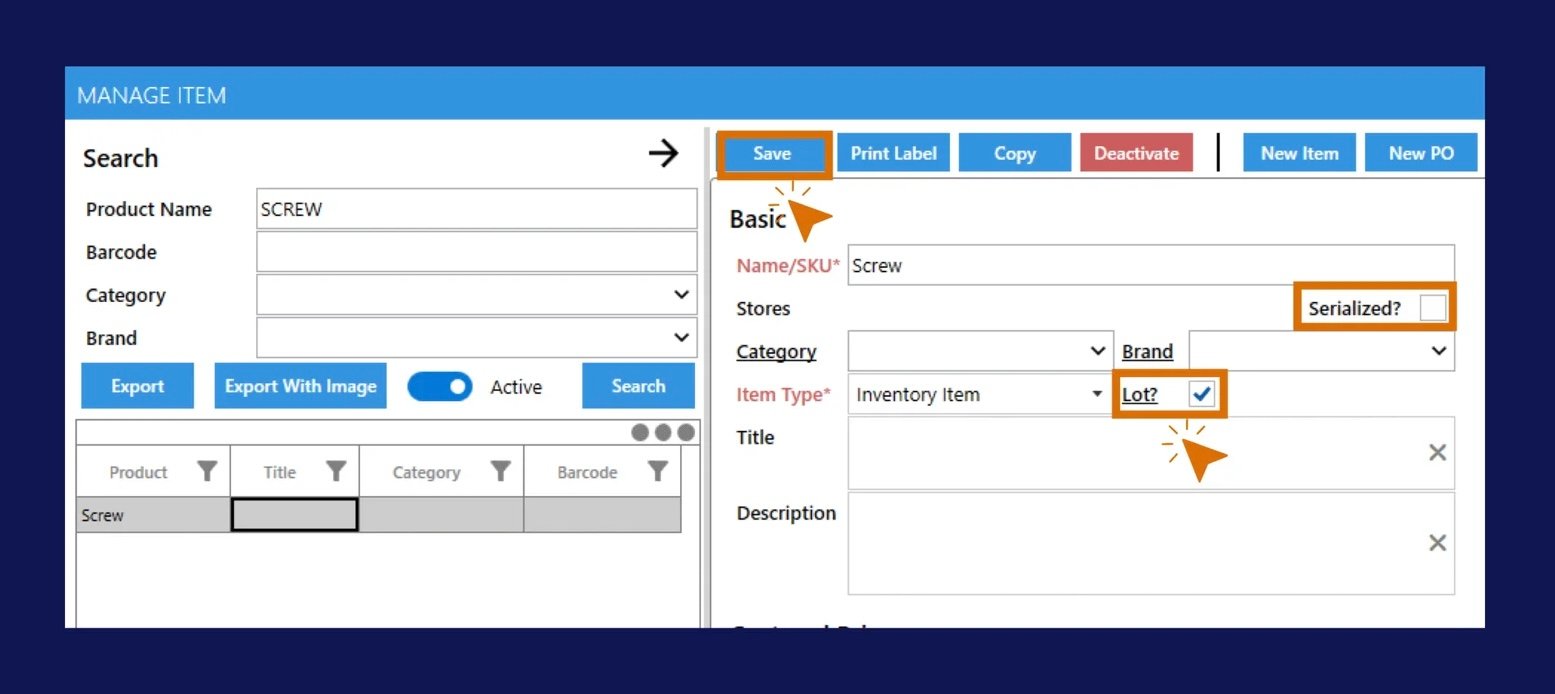
Open the Item Screen
Configure the Item
Once enabled, the item will require both a Lot Number and an Expiration Date when inventory is received.
Receive Inventory with Lot Numbers
Open Purchase Order Receiving
If the selected item is configured for lot tracking, the receiving screen automatically displays:
- Location
- Lot#
- Expiry Date
fields for the item being received.
Receive Inventory
Field | Value |
|---|---|
Physical Location | BAT |
Lot Number | LOT-001 |
Expiration Date | 2027-02-14 |
Quantity Received | 5 |
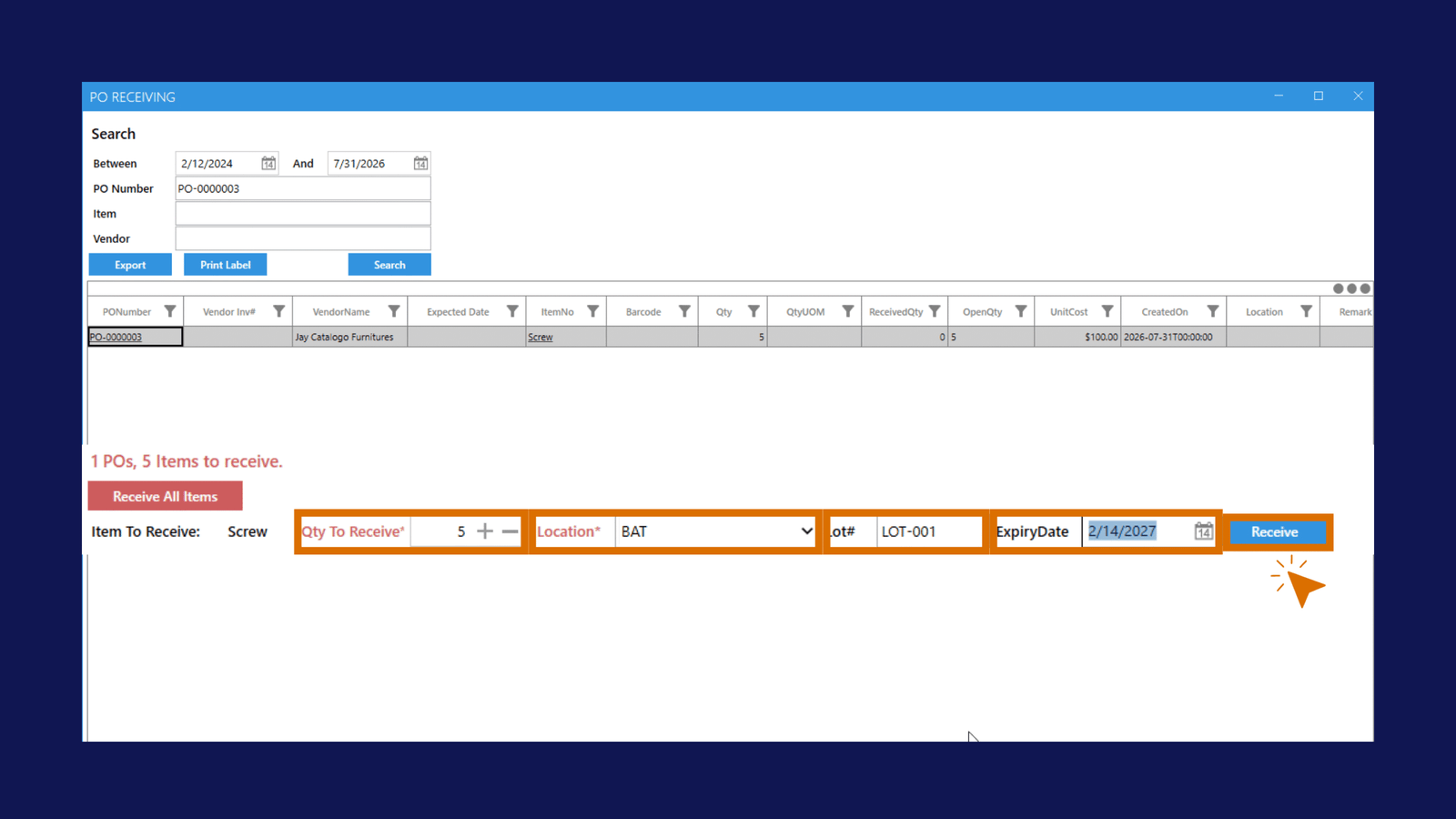
The system automatically creates a virtual location:
BAT-LOT001-20270214
The inventory is stored in this virtual location automatically.
Understanding Virtual Lot Locations
Virtual locations combine:
- Physical warehouse location
- Lot Number
- Expiration Date
Componenty | Value |
|---|---|
Physical Location | BAT |
Lot Number | LOT-001 |
Expiration Date | 2027-02-14 |
Generated virtual location:
BAT-LOT001-20270214
This means:
- Inventory is physically stored in BAT
- Inventory belongs to LOT-001.
- Inventory expires on 2027-02-14.
Virtual locations are created automatically and require no manual setup.
View Current Inventory
Search Inventory Normally
The system groups all lot locations back into the physical warehouse location.
Example:
Location | Quantity |
|---|---|
BAT | 400 |
ABC | 200 |
Location | Quantity |
|---|---|
BAT | 400 |
ABC | 200 |
This view is ideal for daily inventory management.
Search Inventory by Lot
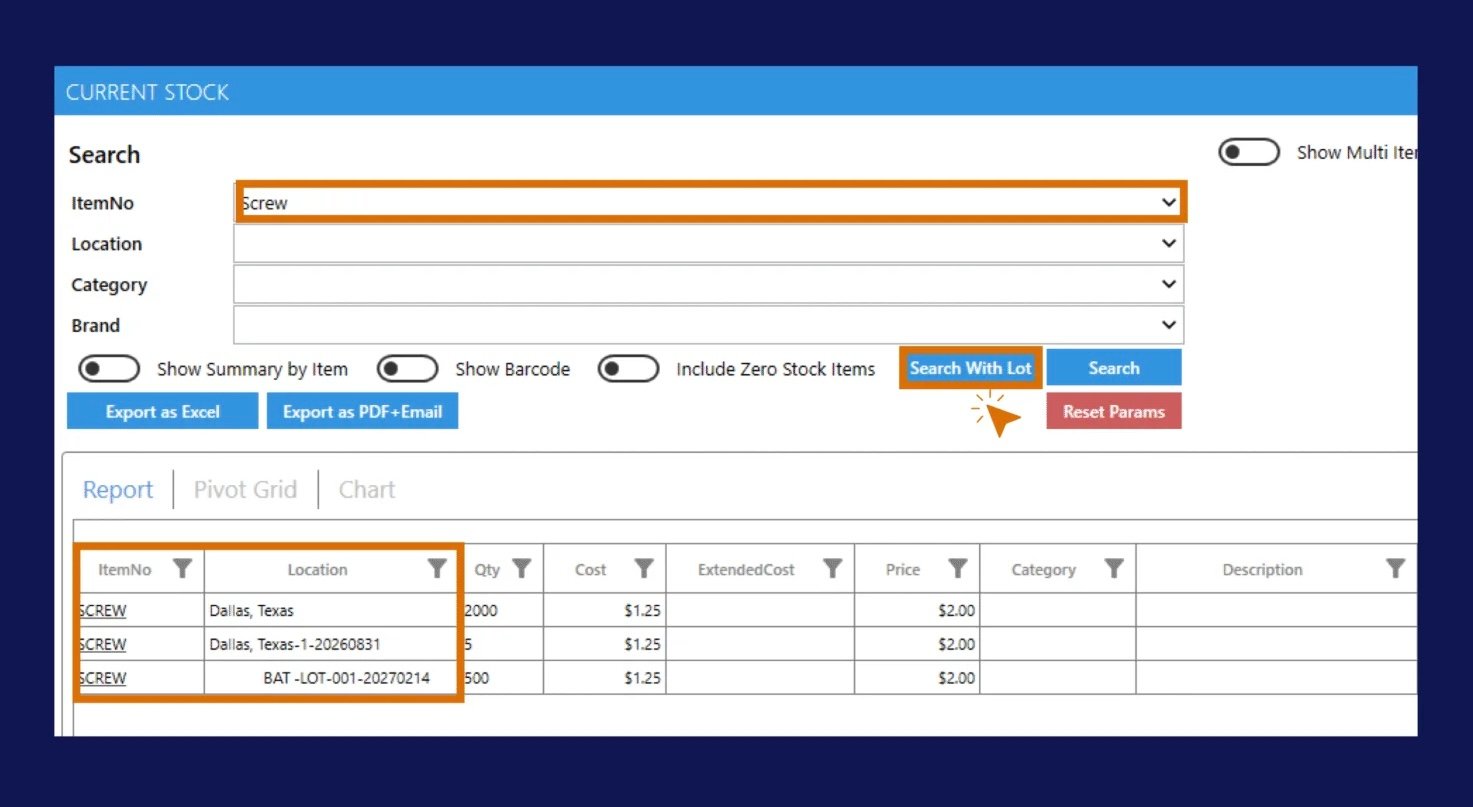
The system displays:
- Physical Location
- Lot Number
- Expiration Date
- Quantity
Each lot appears as a separate inventory record.
Example:
Location | Lot Number | Expiry Date | Qty |
|---|---|---|---|
BAT-LOT001-20270214 | LOT-001 | 2027-02-14 | 200 |
BAT-LOT002-20270 | LOT-002 | 2027-02-19 | 200 |
This view supports:
- Filtering
- Sorting
- Grouping
- Excel-style analysis
Transfer Inventory Between Warehouses
Internal Transfers
When inventory is transferred from a virtual lot location, C2W Inventory automatically preserves the lot information.
Example:
Transfer inventory from:
BAT-LOT002-20270219
to physical location:
FBA
The system automatically creates:
FBA-LOT002-20270219
The lot number and expiration date remain unchanged during the transfer process.
FEFO Picking During Sales Orders
When picking Sales Orders, C2W Inventory automatically recommends inventory from the lot with the earliest expiration date.
This follows the FEFO principle:
First Expired, First Out
Example:
Lot Number | Expiry Date |
|---|---|
LOT-001 | 2027-02-14 |
LOT-002 | 2027-02-19 |
Lot Number | Expiry Date |
|---|---|
LOT-001 | 2027-02-14 |
LOT-002 | 2027-02-19 |
The system automatically recommends:
LOT-001
for picking first.
This helps businesses:
- Reduce waste.
- Prevent expired inventory from being shipped.
- Improve inventory rotation.
- Maintain regulatory compliance.
Manage Virtual Locations
Virtual lot locations are hidden by default in Manage Locations.
Users will only see physical warehouse locations unless they click:
All Locations
The system will then display:
- Physical locations
- Virtual lot locations
- Lot numbers
- Expiration dates
Empty virtual locations are automatically removed when inventory reaches zero through sales, transfers, or inventory adjustments.
Related Guides
Tip
Think of a physical location as the warehouse shelf and a virtual location as the individual batch sitting on that shelf.
This design provides complete inventory traceability while keeping warehouse operations simple and easy to manage.
Tip
Think of a physical location as the warehouse shelf and a virtual location as the individual batch sitting on that shelf.
This design provides complete inventory traceability while keeping warehouse operations simple and easy to manage.
Tip
Think of a physical location as the warehouse shelf and a virtual location as the individual batch sitting on that shelf.
This design provides complete inventory traceability while keeping warehouse operations simple and easy to manage.